Add or replace from Android
Choose VAULT from the Android Share menu. Unlock, then create a new document or select an existing record to update. Review the file and its details before saving.
Opening VAULT
The personal vault for Android
Documents, cards and passwords, encrypted on your Android phone.
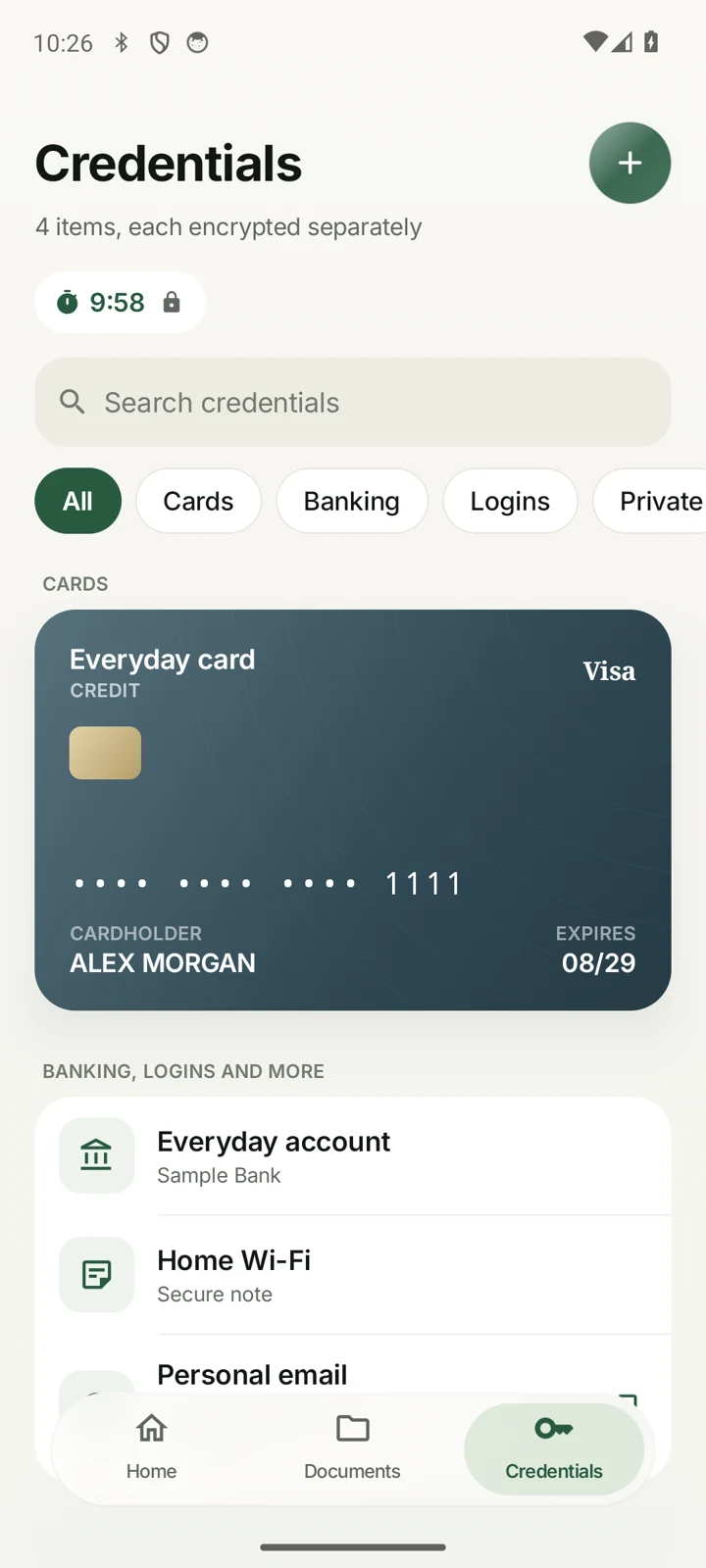
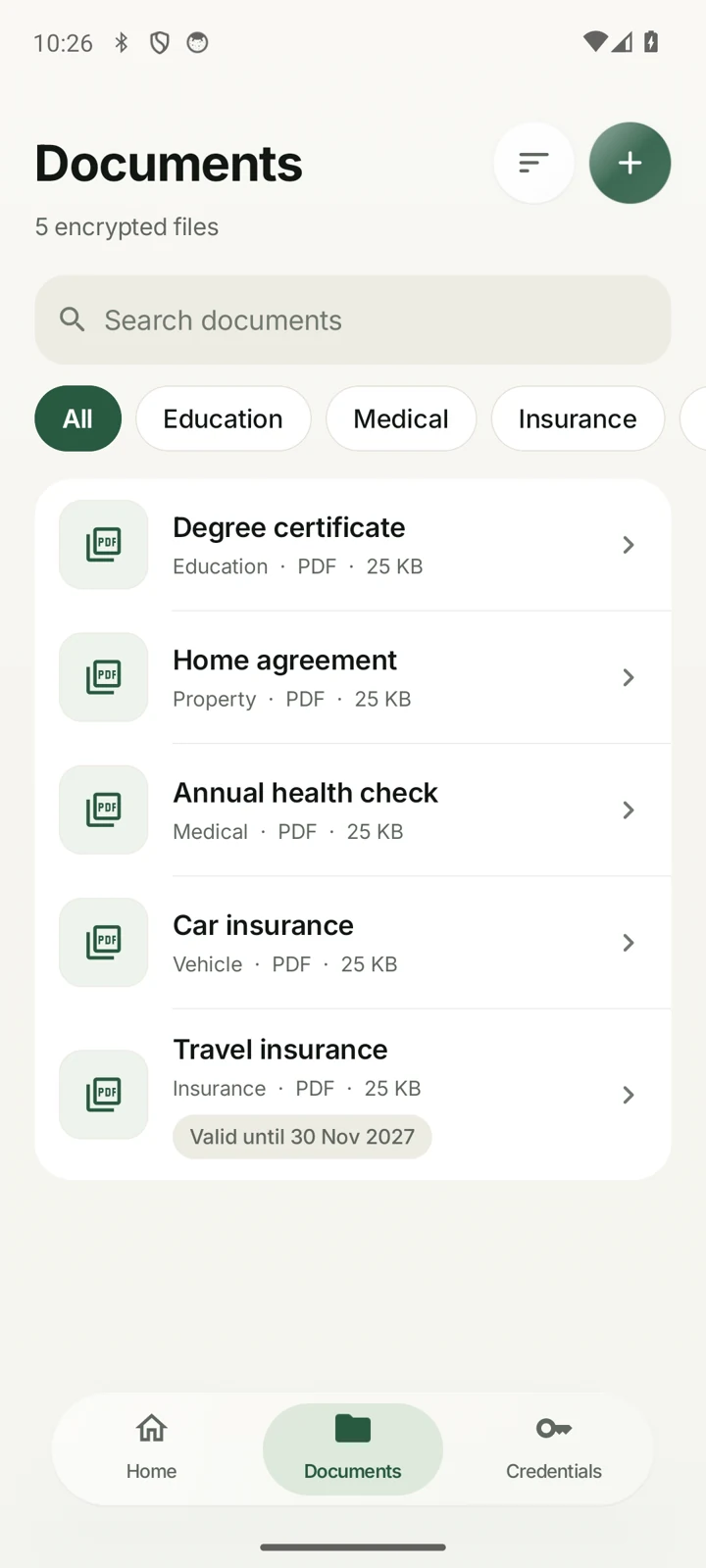
It arrives as a PDF. Save it from Android’s Share menu, find it on your phone, then send it to the person travelling with you.
Follow the documentDocuments
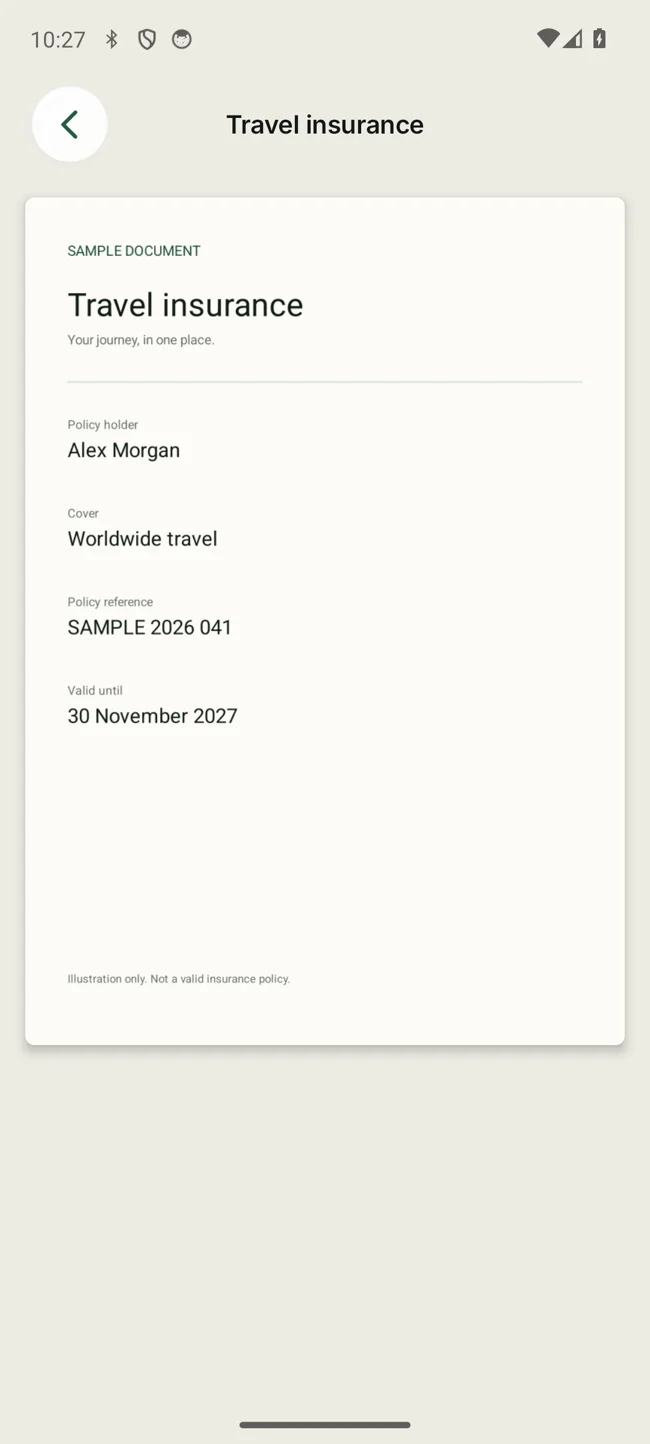
Save a travel policy, give it a name you’ll remember, and open it when you need it.
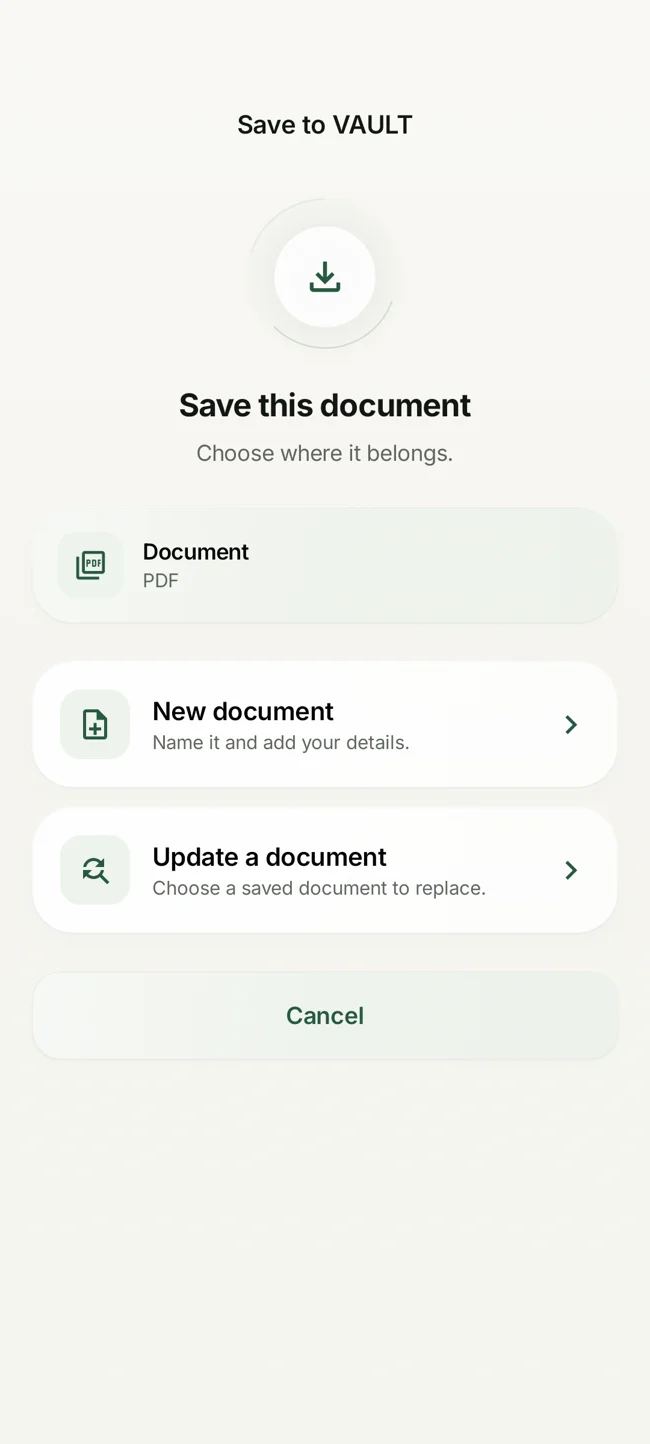
Choose VAULT from the Android Share menu. Unlock, then create a new document or select an existing record to update. Review the file and its details before saving.
Give the policy a name and put it under Insurance. Add an expiry date or a note. Next time, search for its name or filter the list to find it.
Open compatible files in VAULT. Scroll through multipage PDFs and pinch to zoom. Preview support depends on the format. Export a copy when you need to use another app.
See what your saved documents use in Settings → Storage. Delete records you no longer need. Copies already exported remain wherever you saved them.
Credentials
Keep passwords, cards, and other private records in a space with its own PIN.
Create records for website or app logins, cards, banking details, Wi-Fi, IDs, and private notes. Pick a template or create a custom record.
Use a different eight-digit PIN from the one you use to open VAULT. Optional biometrics can also unlock this section after you enable them.
Sensitive fields are masked when credentials lock. If you copy a value, VAULT can clear it from the clipboard.
Private QR
Let a travel companion read the policy, or let them take their own copy.

Open a document and choose Private QR. View access offers a preview. Save copy also lets the recipient download it in a browser or add it to their VAULT with its saved details.
Recipients can scan with the VAULT scanner, a compatible camera, or Google Lens. If they do not use VAULT, they can open the link in a browser. The code in this demo is masked.
The link opens a separate encrypted copy and expires within 24 hours. Anyone with the complete link may be able to open it before it expires. View access cannot stop someone capturing what they can see.
 Recipient previewView only
Move & back up
Move your vault directly between Android phones or keep an encrypted backup you can restore.
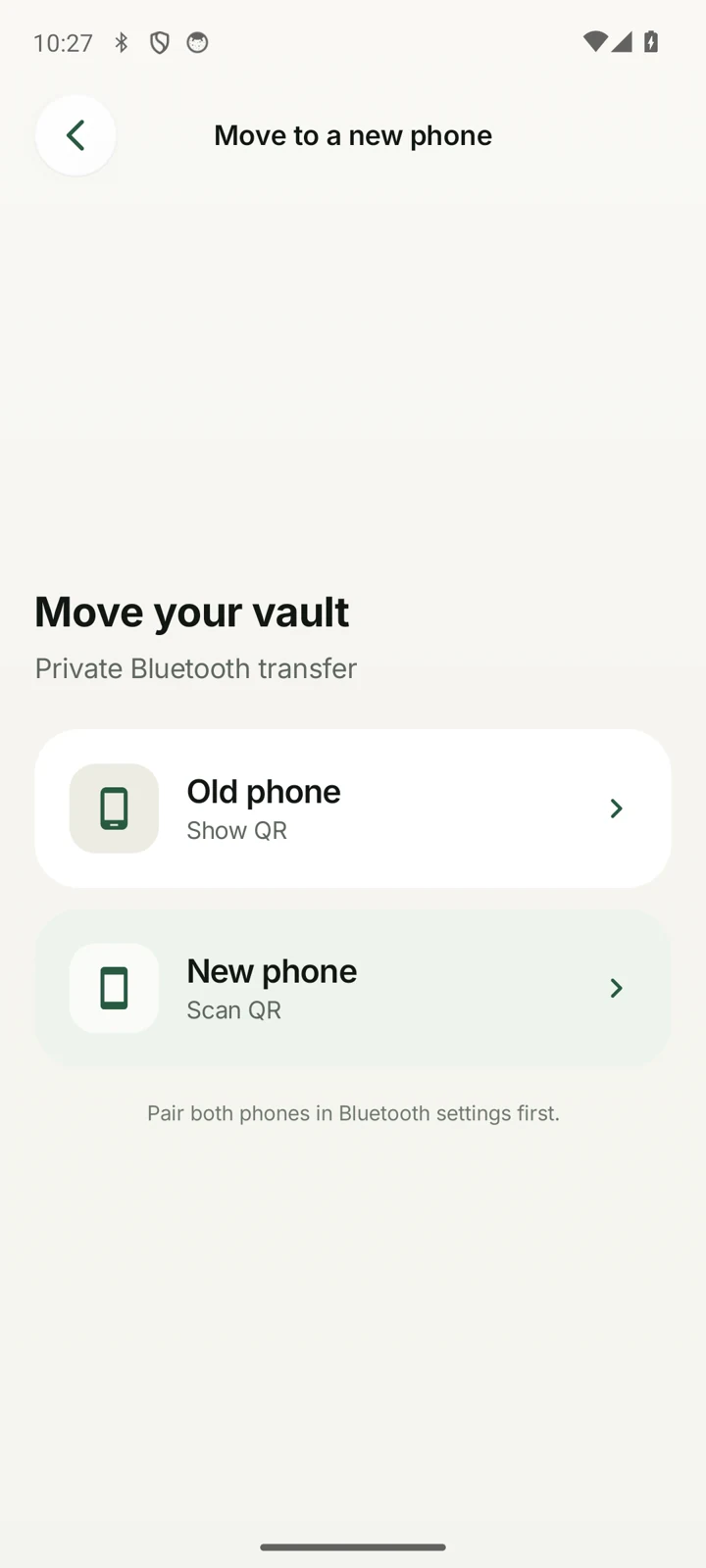
Update VAULT on both phones. Pair them in Android Bluetooth settings, show the migration QR on the old phone, then scan it from VAULT on the new phone.
Follow the prompts on both phones. Your data moves over Bluetooth, and the original phone keeps its copy. Open a few saved items on the new phone before wiping the old one.
In Settings → Encrypted backup & restore, create a file with a unique passphrase. You can include credentials and choose where the file is saved.
Select the backup file and enter its passphrase. Existing records are kept and duplicates are skipped. Unlock Credentials to finish restoring those items.
Security
VAULT is designed around keys held on your phone and separate access to credentials.
Documents and credential records use AES-256-GCM. Android Keystore helps protect the keys. Ordinary vault use keeps the contents on the phone.
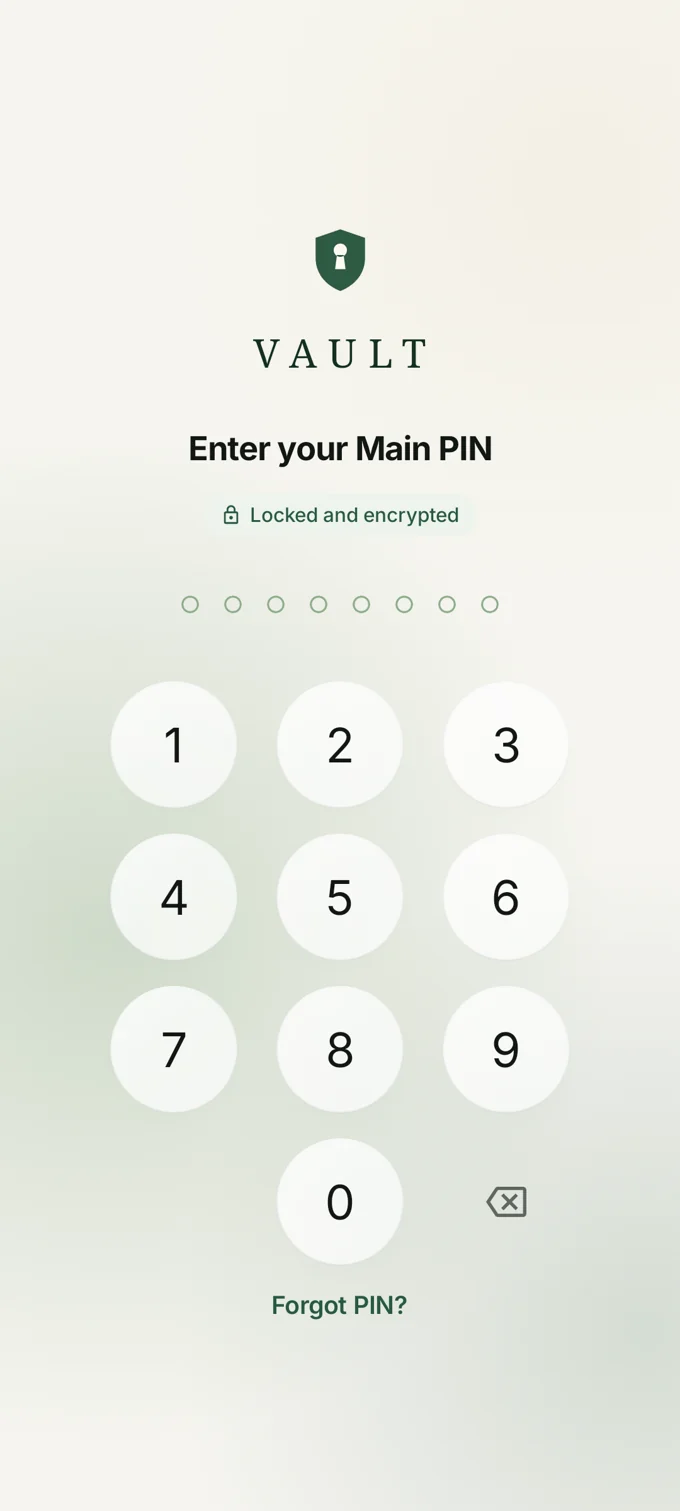
Your eight-digit Main PIN and Credentials PIN protect different data. Enable biometric unlock in Settings. VAULT asks for the PIN again after a restart.
Choose when VAULT locks after you leave the app. Repeated wrong PIN attempts extend the time before another attempt. Credentials relock and mask sensitive values.
Enroll two security answers while you know both PINs. To reset one PIN, you need the other PIN and both answers on that device. Keep an independent encrypted backup.
VAULT protects sensitive screens against Android capture where supported. Browser previews, exported files, and compromised phones have different limits.
VAULT for Android
Start with the document you look for most. Open the practice vault to see where it will live and how easy it is to get back to.
Open the practice vaultOpens a Google Play search. The VAULT listing is coming soon.